

Look for the Force Message App in the App Launcher.
1. Log in as Admin/Power/User.
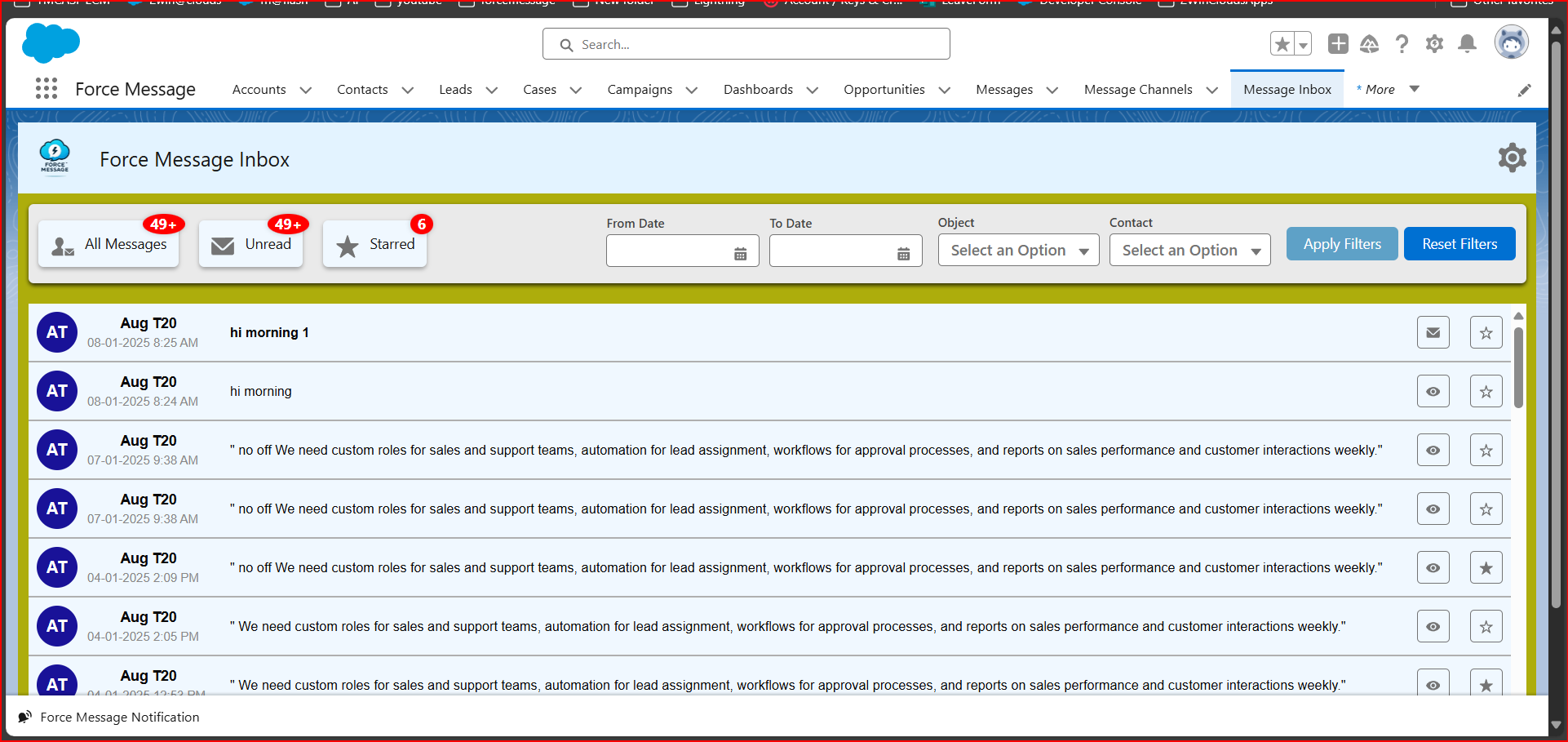
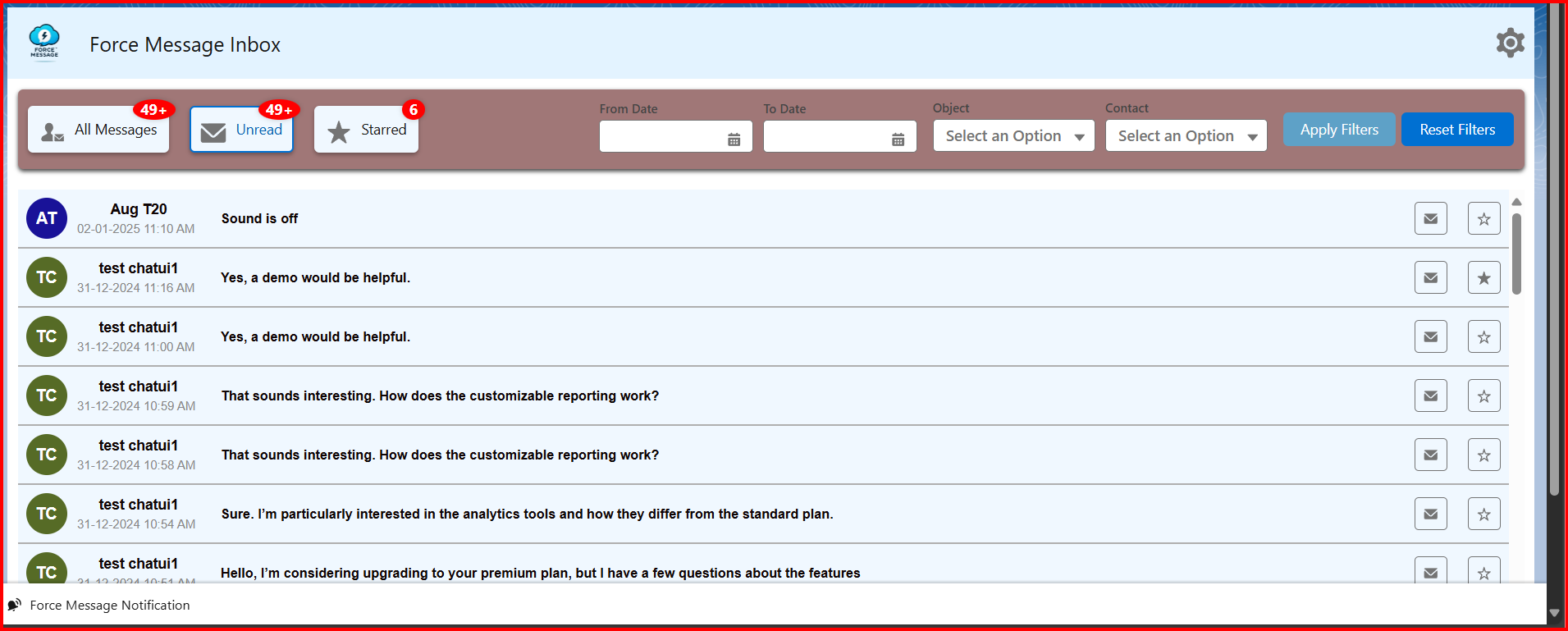
2. Click the Message Inbox tab; there displays a Message Inbox UI component.
NOTE: Only the incoming message with the date and time it is stored in the Message Inbox component, not the other messages.
3. All the incoming messages that are read or in notifications clicked as Mark as Read by the user display in the All Messages option, which are unread by users or in notifications not clicked as Mark as Read, or if Notifications or NewTestChannel in Notification settings is disabled, then that particular message gets stored in All Messages and unread messages in the Force message component.
4. Near All Messages, unread, starred options There it displays the count of messages stored in each, and if the count is above 49, it displays as 49+.
5. If Admin/Power/Normal user wants to mark a message as starred, then clicking the star symbol, that particular message also gets stored in the starred message option.
6. If an Admin/Power/Normal user wants to mark a message as Read, then clicking the Message box symbol, that particular message gets stored in the All message option.
7. Towards your left side, there is a filter option,
1. From Date: It should be current or previous dates but not future dates.
Error Message :

2.To Date: It should be previous dates or future dates.
Error Message :

3. Object: Clicking on this option displays the objects of all incoming messages.
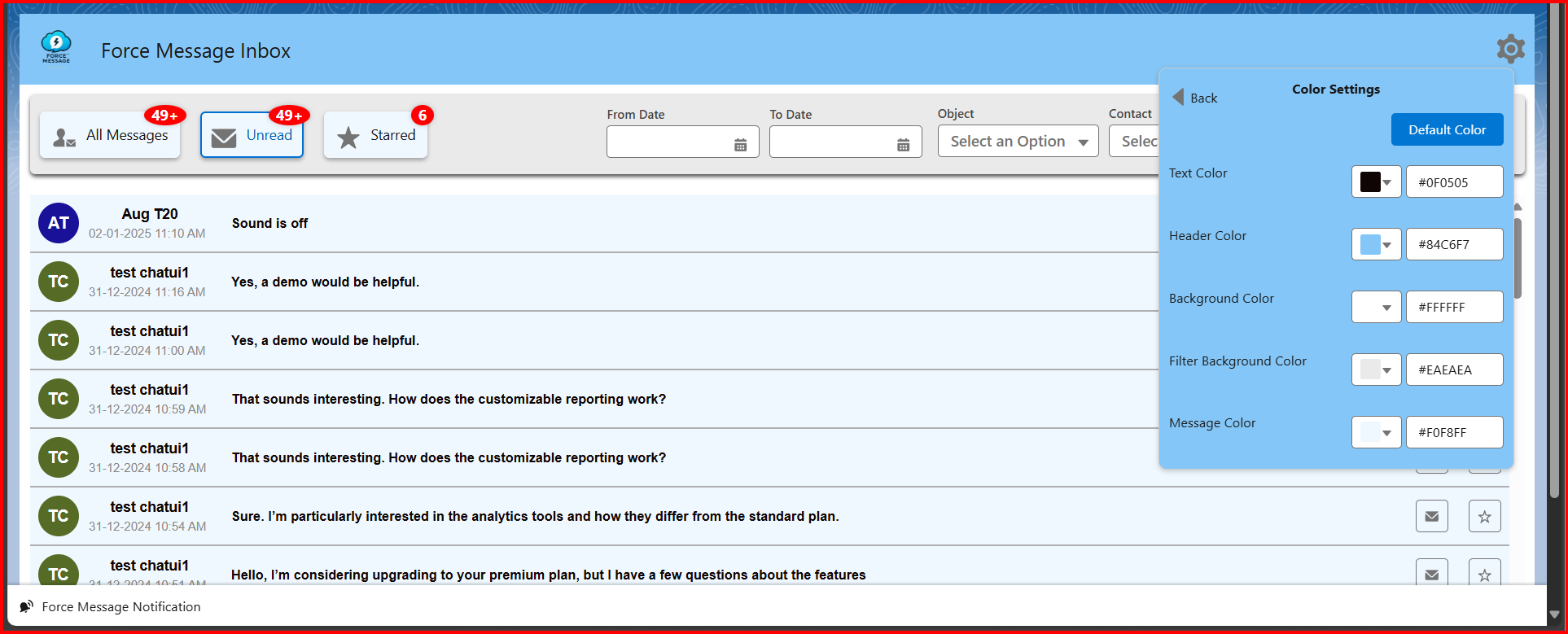
4. Contacts: Clicking on this option displays the contacts.At the top right corner, clicking on settings displays color settings.
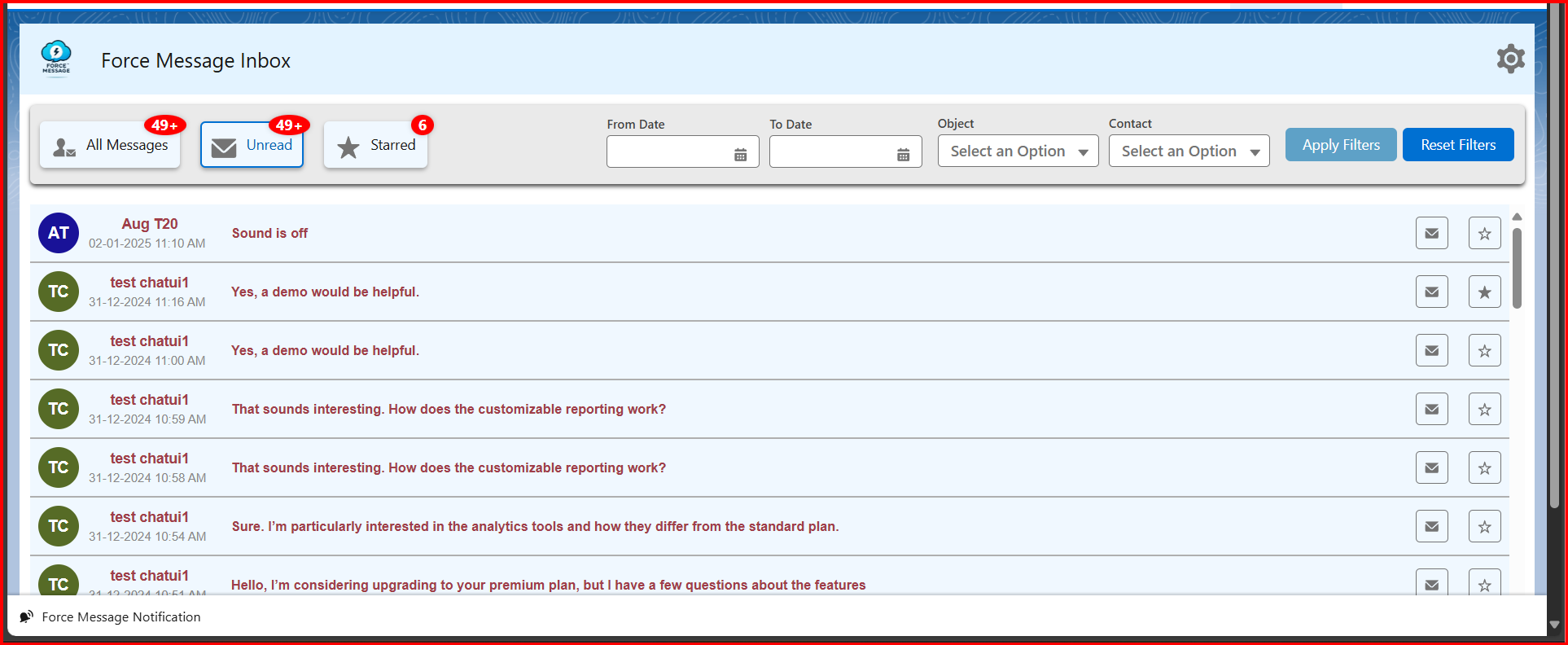
Text Color: To alter the color of the text in the All Messages, Starred, and Unread areas of the Message Inbox. Choose the Text Color option. To view the hexadecimal color palette, click on the dropdown menu. From the palette, choose the necessary color. Click “Save.” Clicking Save should instantly alter it to the chosen color.
Header Color: To alter the settings panel’s background color and the Force Message Inbox Header Select the choice for Header Color. Click the dropdown menu to see the hexadecimal color palette. Select the required color from the palette. Press “Save.” It should instantaneously change to the selected color when you click Save.
Background Color: To alter the background color of the message inbox. Choose the Background Color option. To view the hexadecimal color palette, click on the dropdown menu. From the palette, choose the necessary color. Click “Save.” Clicking Save should instantly alter the component background color to the chosen color.
Filter Background Color: To alter the filter background color of the message inbox. Choose the Filter Background Color option. To view the hexadecimal color palette, click on the dropdown menu. From the palette, choose the necessary color. Click “Save.” Clicking Save should instantly alter the component filter background color to the chosen color.
All Message Color: To alter the All Message Color of the message inbox. Choose the All Message Color option. To view the hexadecimal color palette, click on the dropdown menu. From the palette, choose the necessary color. Click “Save.” Clicking Save should persist across all messages displayed under the “All Messages” option.
Unread Message Color: To alter the Unread Message Color of the message inbox. Choose the Unread Message Color option. To view the hexadecimal color palette, click on the dropdown menu. From the palette, choose the necessary color. Click “Save.” Clicking Save should persist across all unread messages displayed under the “Unread Message” option.
Starred Message Color: To alter the Starred Message Color of the message inbox. Choose the Starred Message Color option. To view the hexadecimal color palette, click on the dropdown menu. From the palette, choose the necessary color. Click “Save.” Clicking Save should persist across all Starred Messages displayed under the “Starred Message “option.

Message UnRead status icon – Once user didnt view the message in message inbox component

Message Read status icon – Once user viewed the message in message inbox component
Message Inbox pics without any color settings and this below pic is default color
Message color
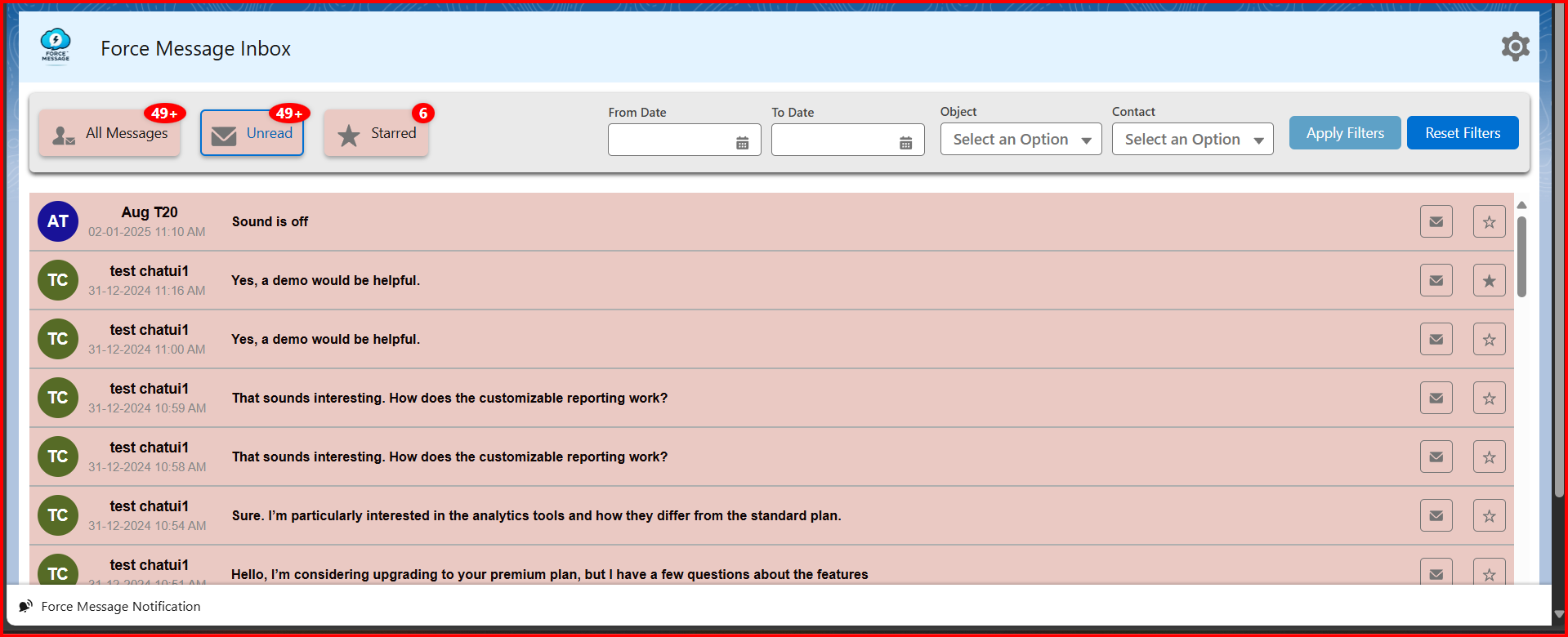
Text color
Header and color setting background color
Filter Background color


Leave a Reply