
Look for the Force Message App in the App Launcher.
As As a Force Message Admin User: It has full access.
As a Force Message Power User:
1. Make sure it is read access only. It can’t create, edit, or delete anything in the org unless the admin gives access to do so to a normal user. But it has read and edit access to message channel users.
- Tabs: Accounts, Bulk UI, Cases, Campaigns, Messages, Message Channel, Message Template, Message Channel Users, Opportunities.
As a Force Message Normal User:
1. Make sure it is read access only. It can’t create, edit, or delete anything in the org unless the admin gives access to do so to a normal user.
2. Tabs: Accounts, Bulk UI, Cases, Campaigns, Messages, Message Channel, Message Template, Message Channel Users, Opportunities.
If you can’t see any of the above-listed tabs, then clicking on the pen displays a pop-up window with the list of tabs. If you want to add any tab that is not visible, then clicking on Add more items Click All—select the required tabs and click Add Nav Items. The tabs get stored in more tabs with a dropdown button. Clicking on that button displays a list of tabs. Click Message Inbox; there displays a Force Message Inbox Component. Clicking on Bulk UI displays a Bulk UI component.
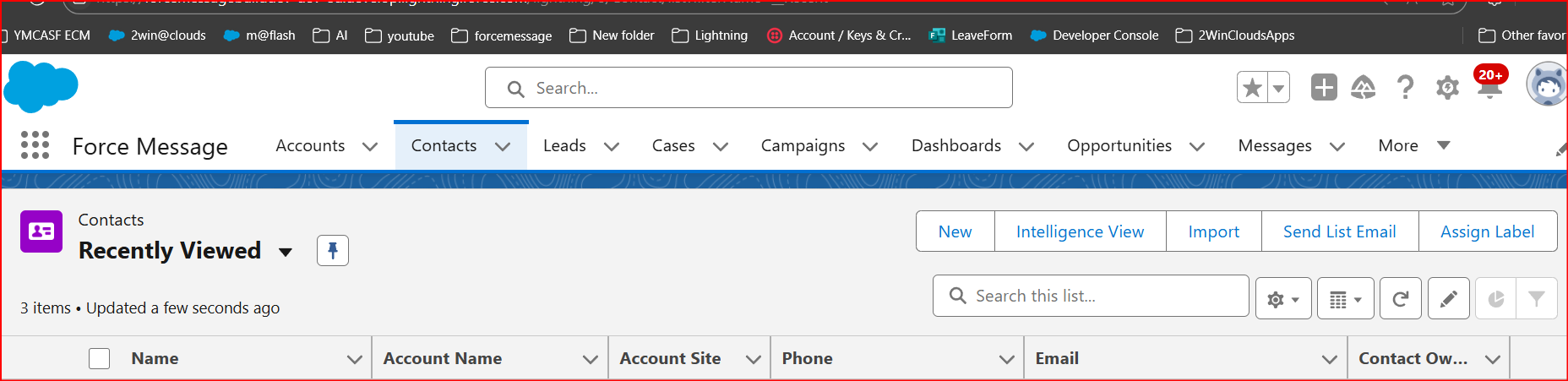
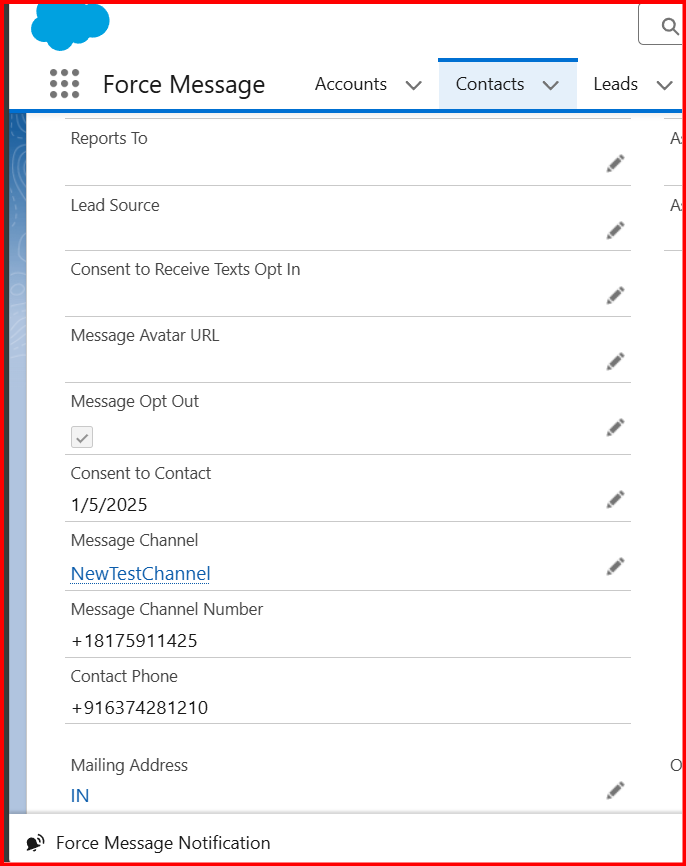
As a Force Message Admin User, you can see the Contacts tab—1, click New—
–> LastName != null and save it. This is stored as a record, but if you want to initiate any text messages, make these fields != null.
–>contact phone != null, +911234567890 (it must have + and country code like 91)
–>consent to contact != null,
–>Message Channel != null
–>Message Opt Out = true (checked),
Fill these above fields and save it.
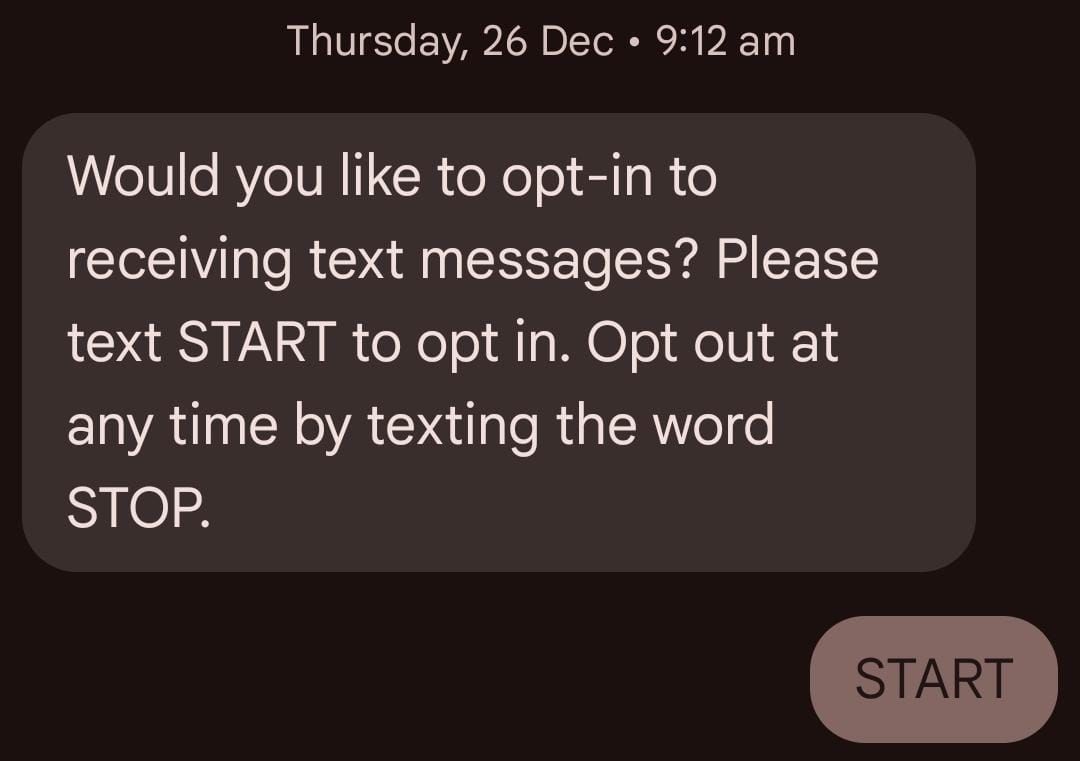
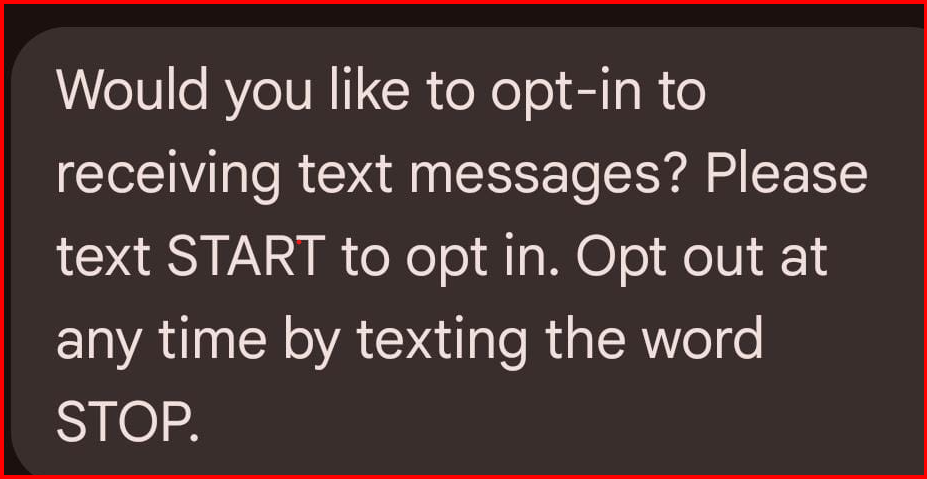
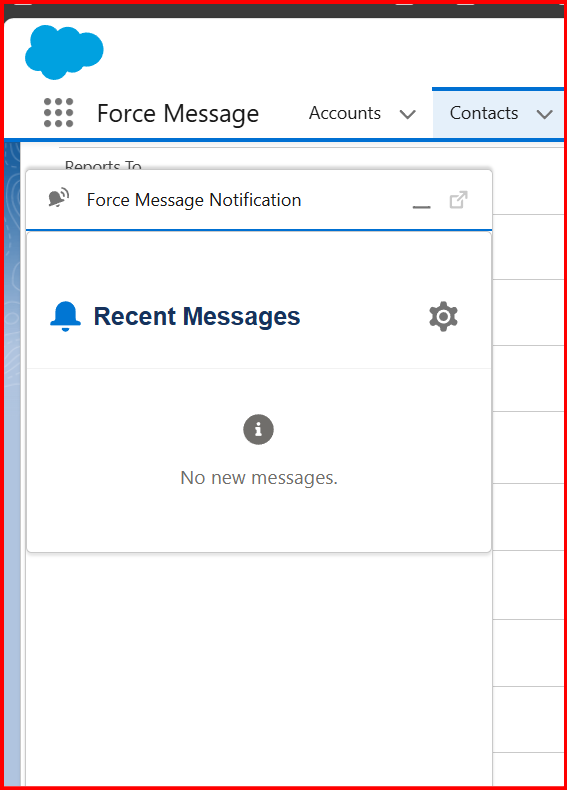
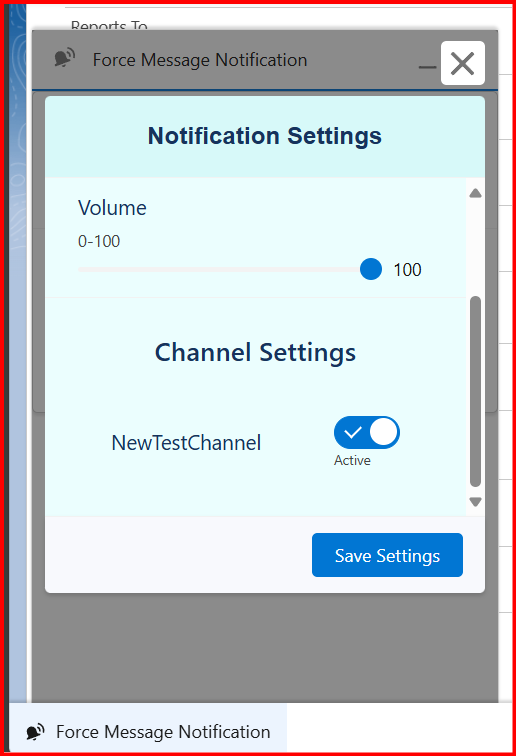
Once the above field is != null. Then, to that contact phone number, the below message is sent to this message: If that contact type is only start, irrespective of any case, then only whatever they send to admin/power/normal user will receive the message. If we get messages from contact, then that is called an incoming message. If any incoming messages are received as admin/power/normal user, the bottom of the screen will show the Force Message Notification Utility bar. Clicking on that, you can see a settings icon. Clicking on that, you can see a few settings.
Scenario: 1
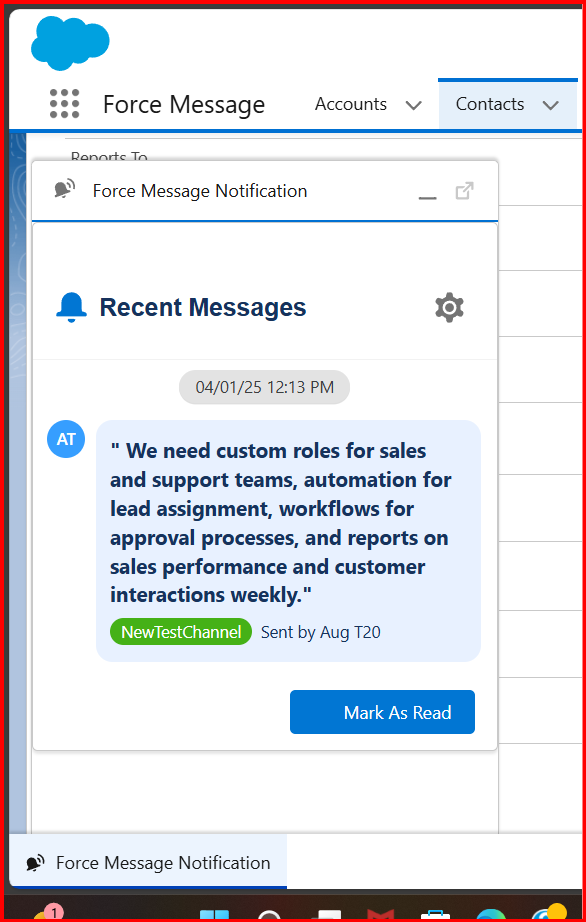
If an incoming message comes, then a notification pops up with sound only when these conditions are satisfied.
–> Enable Notifications – active
–>Sound Notifications – active
–> volume—if it is 0, you can’t hear the notification sound, and if it raises, it raises the volume.
admin may get the notification sound.
–>NewTestChannel – active
Once the admin/power/normal user reads the message, they can click Mark as read. Clicking on this button, the message gets stored in All Messages in the Force message Inbox Component.
Once the admin/power/normal user reads the message, if they didn’t click Mark as read, then that particular message gets stored in All messages and unread messages in the Force message component.
Once the admin/power/normal user reads the message, if Enable Notifications or NewTestChannel is disabled, then that particular message gets stored in All Messages and unread messages in the Force message component.
Scenario: 2
If an incoming message comes, then a notification pops up without sound when these conditions are satisfied.
–> Enable Notifications – active
–>Sound Notifications – Inactive
–> volume—if it is 0, you can’t hear the notification sound, and if it raises, it raises the volume.
admin may get the notification sound.
–>NewTestChannel – active
Scenario: 2
If an incoming message comes, then a notification pops up without sound when these conditions are satisfied.
–> Enable Notifications – active
–>Sound Notifications – Inactive
–> volume—if it is 0, you can’t hear the notification sound, and if it raises, it raises the volume.
admin may get the notification sound.
–>NewTestChannel – active
Scenario: 3
If an incoming message comes, then a notification does not pop up when these conditions are satisfied.
–> Enable Notifications – Inactive
–>Sound Notifications – active
–> volume—if it is 0, you can’t hear the notification sound, and if it raises, it raises the volume.
admin may get the notification sound.
–>NewTestChannel – Inactive
In this case, those incoming messages are stored in All Messages and Unread Messages. By clicking on the Force message Inbox component, they can view them.


Leave a Reply